Short answer
- To claim your business in ChatGPT, open Business Hub from the ChatGPT sidebar, find your business, verify it, wait for OpenAI's approval, then pass a Persona identity check. After that you can edit your details, add a product feed and read mentions and click data. OpenAI says claiming does not guarantee more visibility.
You can now claim your business in ChatGPT. On November 10, 2026, OpenAI launched Businesses in ChatGPT in beta, announcing it for the 1.2 billion people who use ChatGPT each week. The tool is Business Hub at chatgpt.com/business-hub.
This guide covers how to claim your profile, what to fill in, what the numbers mean and what claiming will not do. For the shorter five-step version, see our guide to listing your business on ChatGPT.
What is Business Hub, and who can claim a business in ChatGPT?
Business Hub is OpenAI's new dashboard where a business claims its profile, manages key details and sees how people engage with it in ChatGPT. OpenAI says "any eligible business located where ChatGPT is available" can claim itself through it.
1.2B
Weekly ChatGPT users
OpenAI, November 10, 2026
28 days
Insights window
Mentions and website clicks
Beta
Launch status
Businesses in ChatGPT
Three groups have their own route:
- Most businesses claim directly in Business Hub. OpenAI's help center says you must own the business or be authorized to represent it, and you do not need an Ads account or a ChatGPT Enterprise agreement.
- Shopify merchants can connect their store from Business Hub or the Shopify admin to speed up verification.
- Enterprise customers and advertisers can claim through their OpenAI representative.
OpenAI has not published a price. Treat "is it free" as unanswered until it does (more in the FAQ).
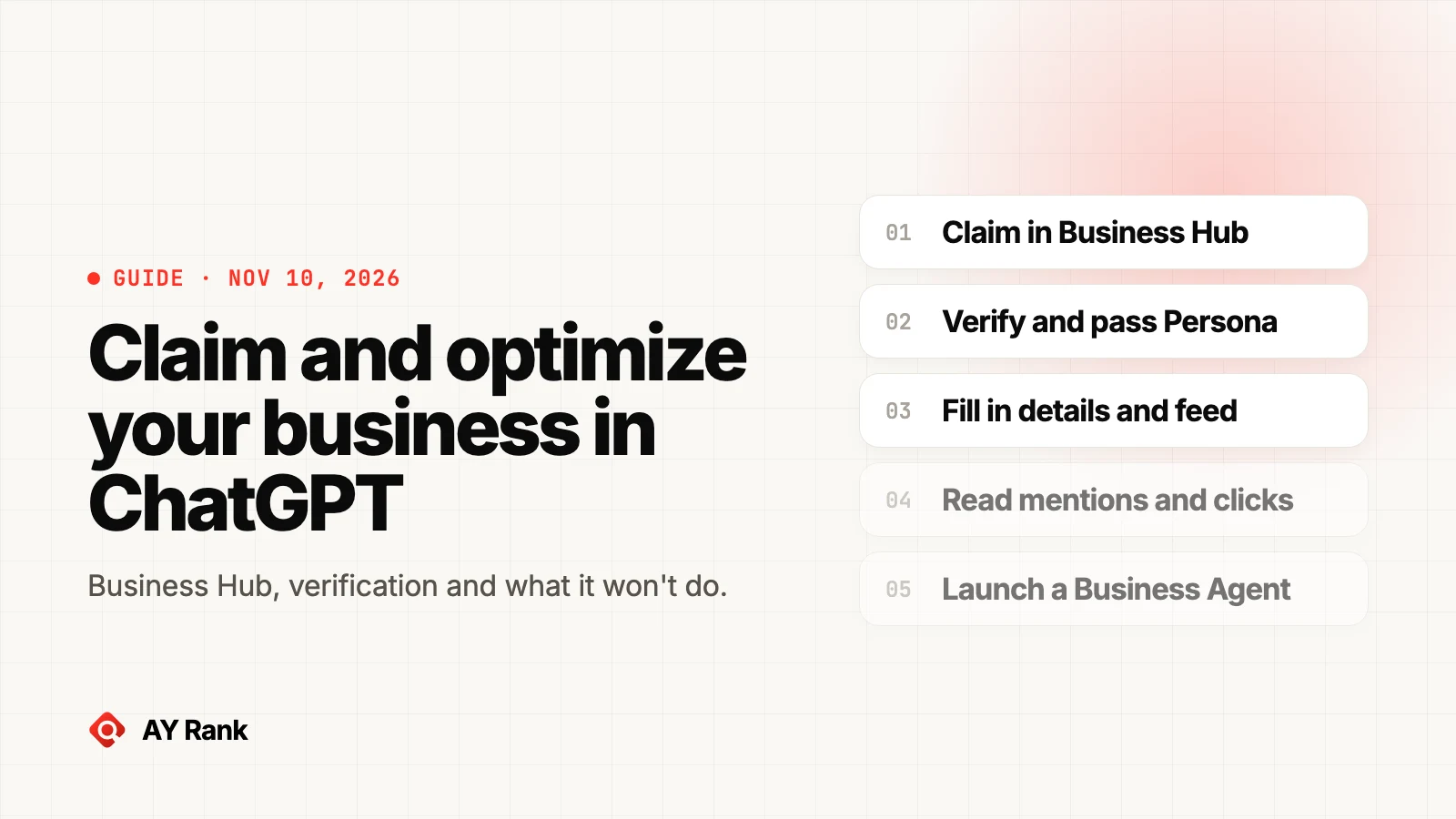
How do you claim your business in ChatGPT, step by step?
These steps follow OpenAI's help article Setting up your business on ChatGPT, with our notes on what to prepare.
1. Check whether your business is already in ChatGPT
Ask ChatGPT three buyer questions in your category and note whether you are named and which sites it cites. It answers "is my business on ChatGPT" and gives you a baseline for later.
2. Open Business Hub and search for your business
Sign in to ChatGPT, open Business Hub from the sidebar and search by name. Select the matching listing and confirm which ChatGPT account will manage it. Pick that account on purpose: OpenAI says invitations for teammates and agencies can depend on it.
3. Verify that the business is yours
Pick one of the verification methods shown. OpenAI's help article names phone, business email, website domain and Shopify. Our checklist below covers what to have ready.
4. Wait for the claim to be approved
OpenAI reviews each claim and emails you a decision or a request for more information. It does not give a review time ("Review time varies"). You can cancel while it is pending.
5. Pass identity verification with Persona
Claim approval gets you into Business Hub. To publish changes, connect a product feed, view insights or create an agent, you also need to complete identity verification with Persona. The blue verified badge appears only after that is approved, not after the claim alone.
6. Fill in the profile and connect a feed
Once both approvals are in, you can update your website, description, category, logo, delivery policy and return policy, and add a cover photo. OpenAI reviews and publishes every change. If you sell products, connect a feed with prices and availability, and see our ChatGPT product feed requirements guide for the fields.
What is the verification checklist for a ChatGPT business profile?
Checklist: verify your business in ChatGPT
- You own the business or are authorized to represent it.
- One working verification route: a business phone that can receive a text or call, a business email, access to your domain's DNS settings, or a Shopify store login.
- The person who can add a DNS TXT record, if you verify by domain.
- A government-issued ID, business registration information and proof you can represent the business, for Persona.
- Business name, address and any registration or tax number that match your official records exactly.
- One ChatGPT account that your team agrees will own the claim.
Two notes on sources. OpenAI's help article lists phone (text or automated call), business email, website domain and Shopify. On launch day, Search Engine Roundtable's Barry Schwartz reported verifying through a text or call to the main business number or DNS, and said he did it by DNS. That is one reporter's account, so read the options on your own claim screen.
Schwartz also said he was "nervous about people hijacking businesses." OpenAI's help center describes a Dispute ownership option on an already claimed profile, which asks you to verify with Persona that you are authorized to represent the business.
How do you optimize your ChatGPT business profile?
OpenAI documents what you can edit. It does not document a ranking formula, so this section separates the two.
What OpenAI lets you set: website, description, product or service category, logo, delivery policy, return policy, cover photo and a product feed. Everything must follow its Businesses in ChatGPT policy.
What we recommend (our view, not OpenAI's):
- Make the profile match your website. Use the same business name, category and policies in both places. A mismatch gives any system two versions of you to choose from.
- Write the description like an answer. One or two plain sentences on what you sell, who it is for and where you operate.
- Fill the policies. Delivery and return terms are what buyers ask a Business Agent.
- Keep the feed current. Stale prices are worse than no feed.
- Fix the pages behind your site. OpenAI notes ChatGPT "may also use other sources when answering questions about your business", so your product, pricing and about pages still need to say the same thing.
For the page work, our guide to ChatGPT SEO covers entity clarity and extractable answers.